How to display the widget in your theme
Two clicks. No theme code edits. The bundle widget appears on your product pages within seconds of being enabled.
Enable the Bundle Discount block
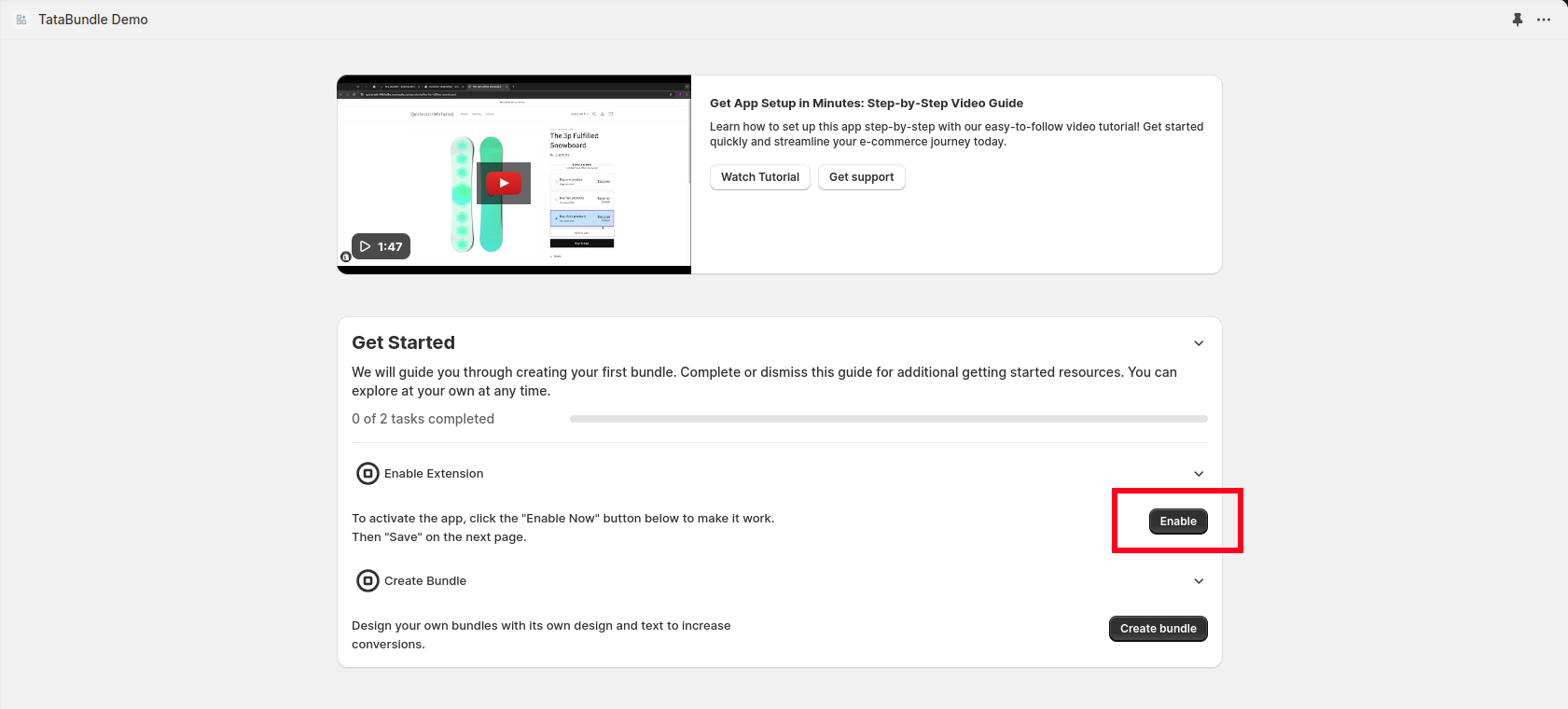
In the Tata Bundle app dashboard, click the Enable button. In most themes, the block is already activated by default.
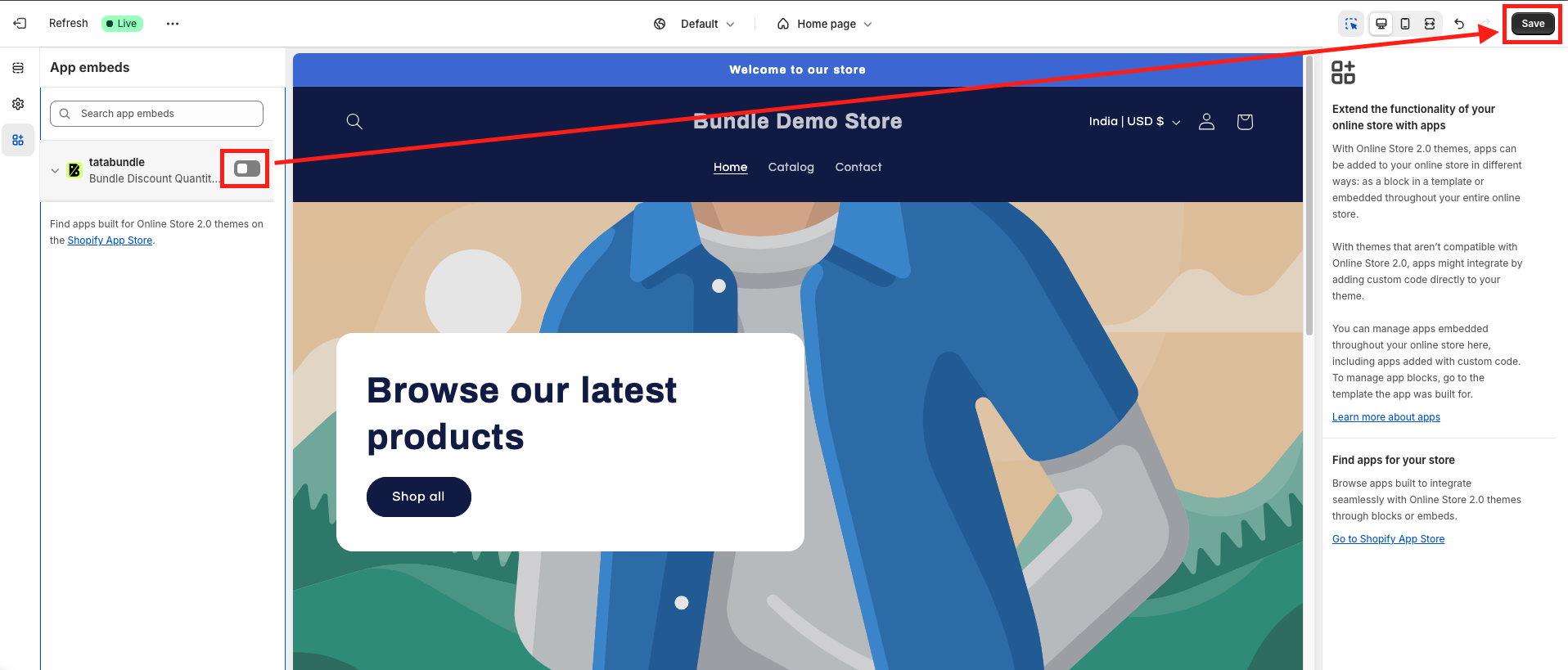
Activate the app block & save
Open your theme editor, find the Tata Bundle block in the left sidebar (often already enabled), and click Save.
Ping us on chat — a real human will activate the block for your specific theme in under 5 minutes. No charge, ever.
How to enable the widget on a featured product
Want the bundle widget to appear on featured-product sections (homepage spotlight, landing pages, etc.)? Seven steps, no code.
Open your theme editor
From your Shopify admin: Online Store → Themes.
Click "Customize" on the live theme
Pick the theme you want to edit and open it in the customizer.
Locate the Featured Product section
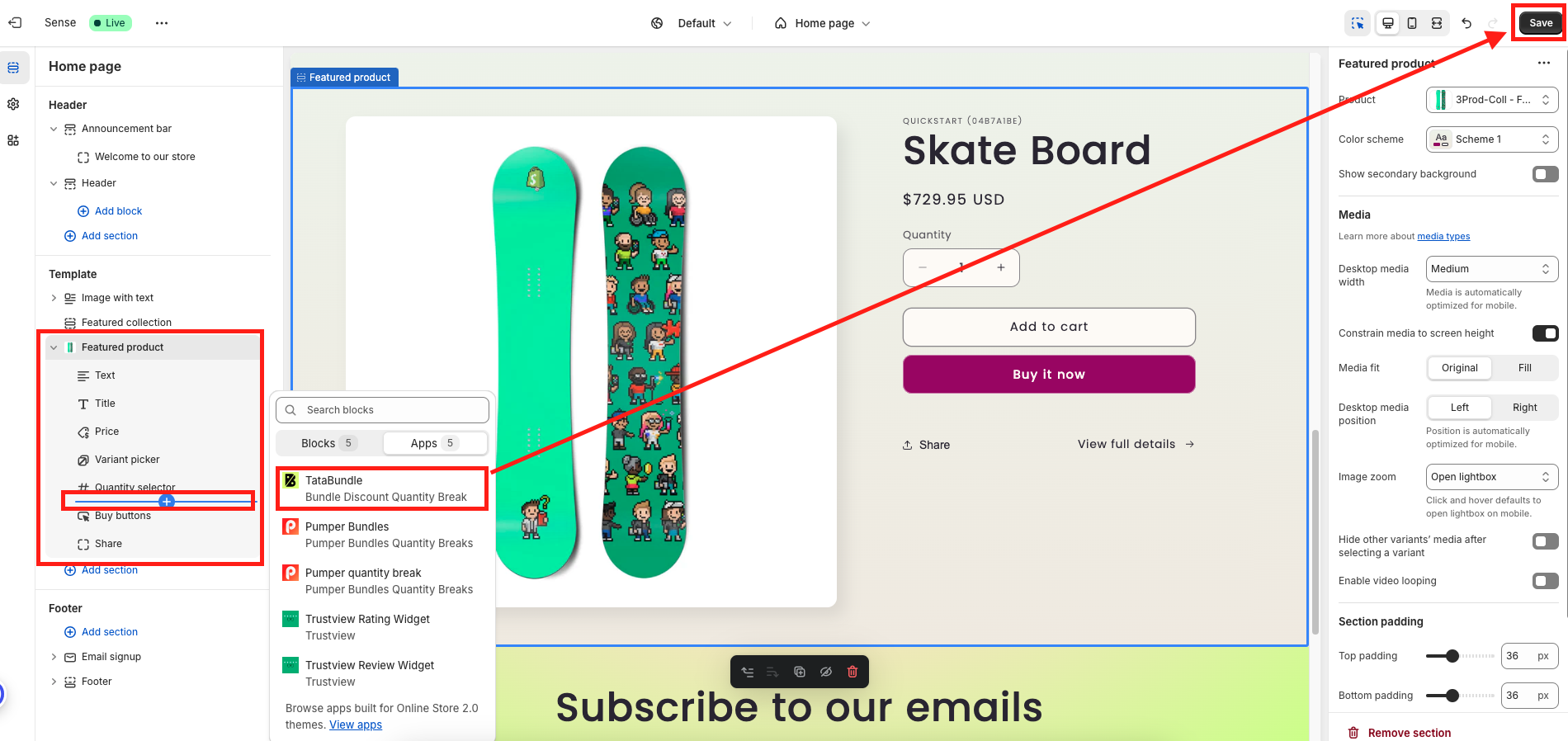
In the left sidebar, expand the Featured Product section by clicking the small arrow.
Click "Add block"
Inside the Featured Product section, click Add block to open the list of available blocks.
Find "TataBundle: Bundle Discount Quantity Break"
Scroll or search the block list, then click to add it.
Adjust block settings (optional)
Use the right-hand panel to tune the layout, copy, and colours.
Click "Save"
Hit Save in the top right. Your bundle is now live on the featured product section.
How to reposition the widget anywhere
Page builders, landing pages, or any custom placement — drop one HTML snippet wherever you want the bundle to appear.
Enable the app embed
Confirm the Tata Bundle app embed is active in the theme editor (same as the standard setup above).
Add a custom Liquid section
In your page builder (or theme editor), add a Custom Liquid block and paste the snippet below.
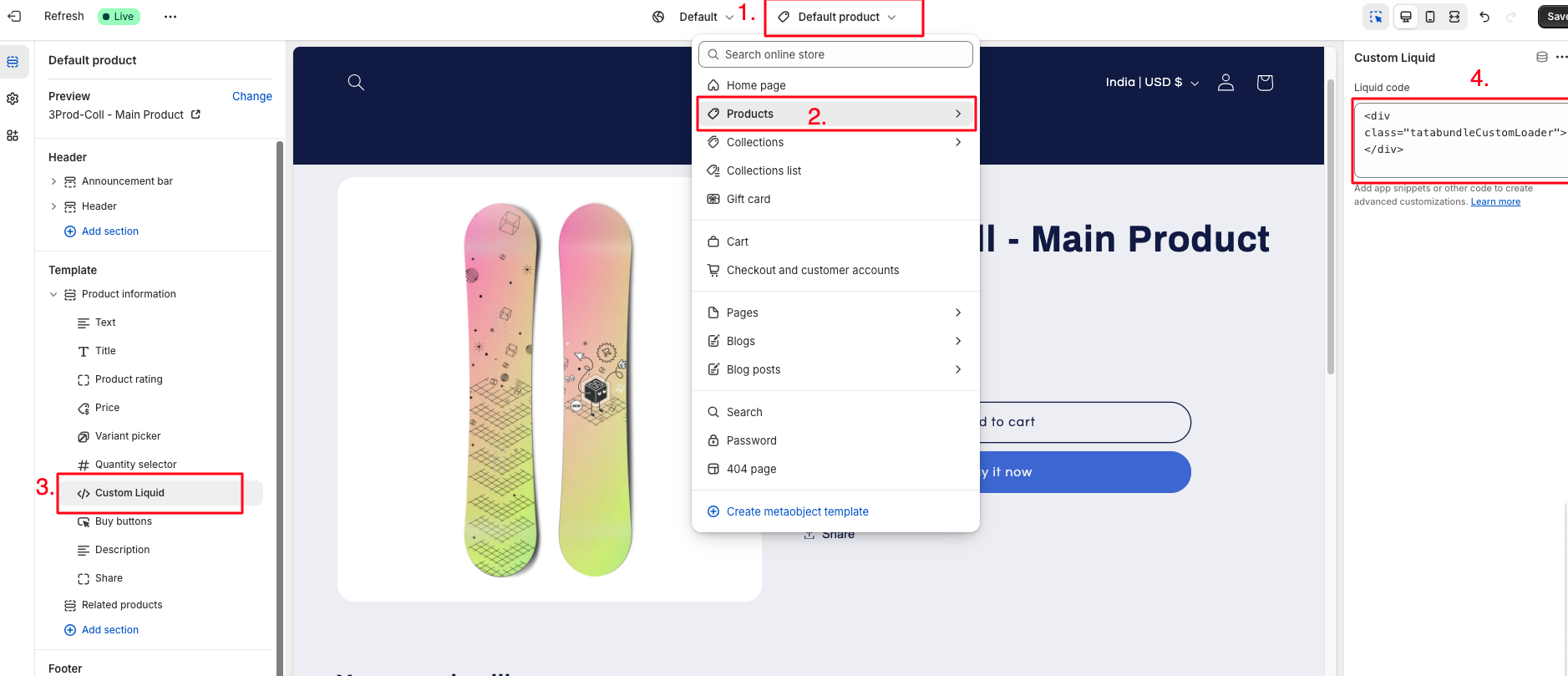
HTML<div class="tatabundleCustomLoader"></div>
Think of a snippet like an app block, and an app block like a snippet. The only real difference is that an app block lets you pick a product in the customizer; a snippet renders for whatever product page it lives on.
Error banners & how to fix them
When configuring your bundle, you may see one of the following error messages. Each one is explained below with steps to resolve it.
Configuration errors
!Title is required+
The bundle title field is empty.
Troubleshooting steps
- Open the bundle settings in the Tata Bundle app.
- Enter a descriptive name in the Title field (e.g. “Summer Bundle”).
- Save and confirm the error is gone.
!You cannot have a bundle discount for all products if there are already published discounts+
A new bundle with visibility set to All cannot be created if other published discounts already apply to specific products or collections.
Troubleshooting steps
- Review all existing bundles in the app and check their visibility settings.
- Find any bundles with visibility set to Product, Collections, or All that have active published discounts.
- Either narrow the new bundle's visibility to specific products/collections, or deactivate the conflicting bundles.
- Save and try again.
!Product(s) in this bundle are already used in other published bundles+
One or more products selected for this bundle are already included in other active published bundles. Each product can only belong to one bundle at a time.
Troubleshooting steps
- Navigate to the Bundles section to review existing published bundles.
- Check the Selected Products field of each bundle to find the conflict.
- Remove the conflicting products from the new bundle, or deactivate the bundles using them.
- Save and retry.
!Collections in this bundle are already used in other published bundles+
One or more collections selected are already included in other active bundles. Each collection can only belong to one bundle.
Troubleshooting steps
- Navigate to the Bundles section to review existing published bundles.
- Check the Selected Collections field of each bundle.
- Remove the conflicting collections, or deactivate the bundles using them.
- Save and retry.
Configuration errors
!Visibility, Selected Products, Layout, etc., are invalid+
Fields such as Visibility, Selected Products/Collections, Header Title, Layout, Bundle Position, or Currency Format are missing or incorrectly formatted.
Troubleshooting steps
- Open the Settings section in the Tata Bundle app.
- Ensure Visibility is set to a valid option (Product or Collection).
- Select at least one item for Selected Products or Collections.
- Verify Layout (Grid / List), Bundle Position (Top / Bottom), and Currency Format ($0.00 / 0.00 USD).
- Check boolean toggles like "Show Variants Selection" or "Hide Compare-at Price".
- Save and recheck.
Offer configuration errors
!At least one offer is required+
No offers have been added to the bundle.
Troubleshooting steps
- Navigate to the Offers section.
- Click
Add Offerto create at least one. - Fill in Offer Title, Quantity, and Discount.
- Save.
!Offer Title, Quantity, Discount, etc., are invalid+
Fields like Offer Title, Subtitle, Quantity, Discount, Label, Best Seller, Thumbnail URL or Image Size are missing or incorrectly formatted.
Troubleshooting steps
- Open the Offers section.
- For each offer, confirm:
- Title & Subtitle are descriptive text (e.g. “Buy 2, Save 10%”).
- Quantity is a positive number.
- Discount is a valid percentage or amount (e.g. “10%” or “5.00”).
- Label / Best Seller fields have valid types.
- Thumbnail URL points to a valid image.
- Image Radius & Size are positive numbers.
- Save and verify.
Visual configuration errors
!Header Title Color, Font Size, Border Radius, etc., are invalid+
Design fields — colors, font sizes/weights, or border settings — are missing or incorrectly formatted.
Troubleshooting steps
- Open the Design section.
- Use valid hex colors (e.g.
#FFFFFF). - Font sizes must be positive numbers (e.g.
16). - Font weights must be valid (
normal,bold, or400). - Border Radius must be a positive number.
- Save and recheck.
Some errors come from theme-specific edge cases. Send us a chat with a screenshot — we'll fix it for you, free of charge.
Get in touch.
Real people, fast replies, no chatbots. We'll write the CSS, fix the conflict, and unblock you — usually in minutes.
Average reply time: under 4 minutes.
Live chat is the fastest path to a fix. Custom CSS, theme conflicts, billing questions — pick the channel that suits you and we'll take it from there.